
Add booths and assign exhibitors
Add booths one at a time or a whole row like A1 to A20, then assign each exhibitor to their booth.
On this page
The Booths page keeps your booth list and who's in each booth. Booth numbers appear in the exhibitor results report and the public exhibitor directory. Booth management is included on every plan.
Add booths
-
Step 1: Open Booths
Open your event and click Booths in the left sidebar.
-
Step 2: Add a single booth
Under Add one booth, enter a Number such as A12, plus an optional Size and Type. Click Add booth.
-
Step 3: Or add a whole row
Under Add a row of booths, enter a Prefix (A), From (1) and To (20), then click Add booths to create A1 to A20.
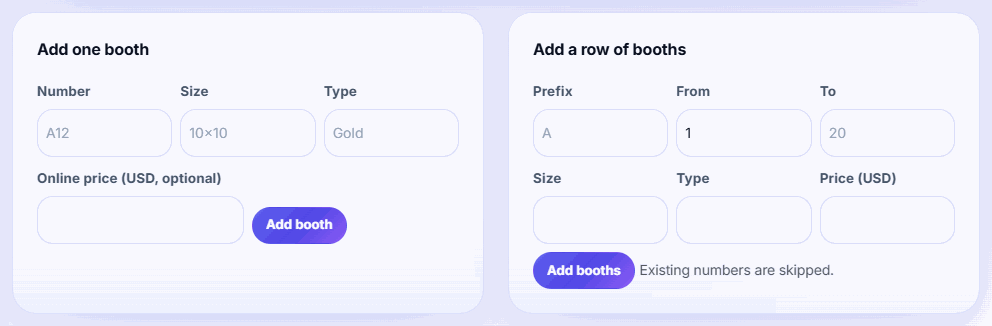
Tip: You can add up to 500 booths at a time. Numbers that already exist are skipped, so running the same row twice is safe. For two-digit numbers like A01, type A0 as the prefix for 1–9 and add 10 onwards in a second row with prefix A.
Assign exhibitors
-
Step 1: Find the booth
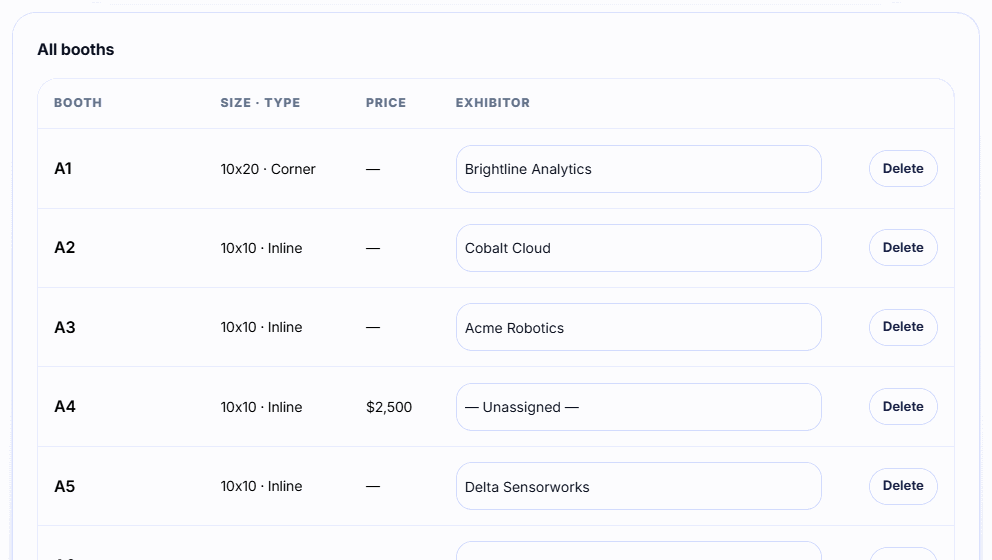
Scroll to All booths. Booths are sorted naturally, so A2 comes before A10.
-
Step 2: Pick the exhibitor
Choose the exhibitor in the booth's dropdown. It saves straight away.
-
Step 3: Clear a booth
Choose — Unassigned — to free the booth.
Rules
- Each exhibitor can have one booth. Assigning them to a new booth frees their old one.
- Exhibitors who already have a booth are marked (has a booth) in the dropdown.
- Booth numbers must be unique within the event.
- Booths sold online can't be deleted. Unassign them instead.
Next steps
- Place booths on your hall map, or sell them online: Upload a floor plan and sell booths online (Growth plan and up).
- Share a public list of exhibitors and booth numbers: Publish an exhibitor directory.
Exhibitors see their booth number on the Booth page of their workspace.
Related guides
- Upload a floor plan and sell booths online Upload your hall map, click to place booths, and let exhibitors pick and pay for a booth online.
- Publish an exhibitor directory Share a public page listing your exhibitors and booth numbers, with descriptions and links they write themselves.
- Invite exhibitors to your event Add exhibitors one by one or from a CSV, send their invite emails, and see who has joined and started scanning.
Still stuck?
Tell us what you were trying to do and what you saw. We'll help you sort it out.