
Upload a floor plan and sell booths online
Upload your hall map, click to place booths, and let exhibitors pick and pay for a booth online.
On this page
Plan: Interactive floor plan and online booth sales is included on the Growth and Pro plans and on Custom plans. On a smaller plan you'll see an upgrade page instead. Compare plans.
Upload your hall map, mark where each booth is, and let exhibitors choose and pay for their own booth. Payments go straight to your Stripe account.
Add your booths first. See Add booths and assign exhibitors.
Upload and place booths
-
Step 1: Upload the map
On the Booths page, click Upload in the floor plan card and choose a PNG, JPG or WebP image under 8 MB.
-
Step 2: Choose a booth
In Place booth, pick a booth from the list.
-
Step 3: Click the map
Click where that booth is on the map. You'll see Placed and the booth name. Repeat for each booth.
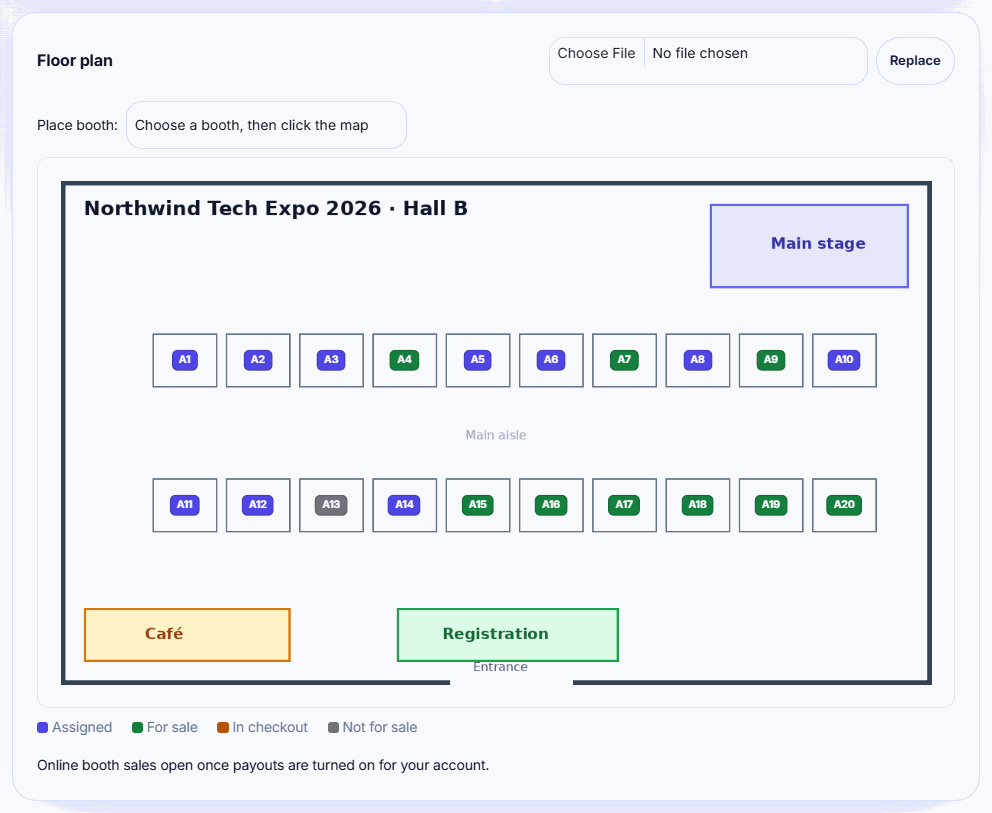
To move a booth, choose it again and click its new spot. Click Replace to upload a new map. The map's colours show each booth as Assigned, For sale, In checkout or Not for sale.
Sell booths online
-
Step 1: Turn on payouts
Connect Stripe in Event settings. Payments go to your Stripe account.
-
Step 2: Set prices
Give each booth for sale an Online price (USD), or set a Price when adding a row.
-
Step 3: Tell exhibitors
Exhibitors open Booth in their workspace, choose an available booth and click Continue to secure checkout.
-
Step 4: See what's sold
Sold booths are assigned automatically and marked Sold online in your booth list.
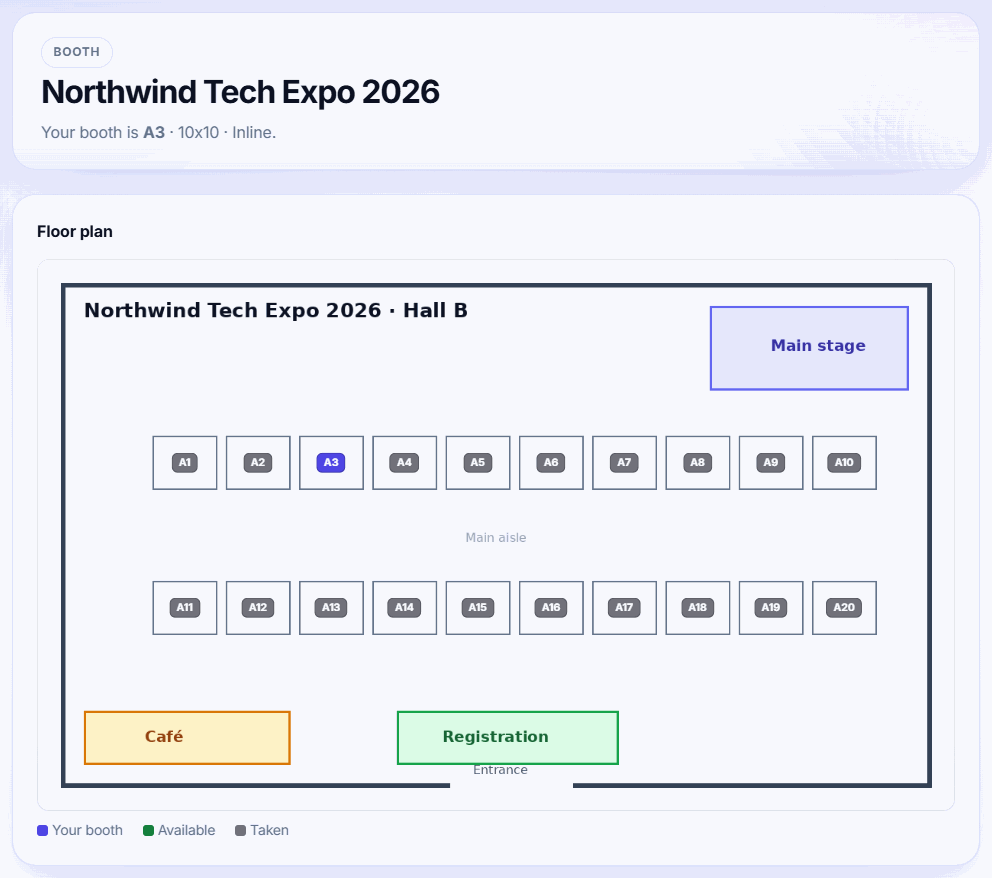
How exhibitors buy a booth
- They open Booth in their exhibitor workspace and see the map with Available and Taken booths.
- They pick a booth and click Continue to secure checkout.
- The booth is held for 35 minutes while they pay. If someone else got there first they see That booth was just taken.
- After payment, the booth is theirs and the page shows Your booth is ….
Prices and fees
- Booth prices start at $50.
- Badgetrac keeps 3% of each booth sale. The rest is paid out to your Stripe account.
- Only booths with a price are for sale. Booths without a price can still be assigned by hand.
Refunds are made in Stripe. Refunding a booth in your Stripe dashboard doesn't free it in Badgetrac. Unassign it on the Booths page if you want to sell it again.
If the page says Online booth sales open once payouts are turned on for your account, contact us to turn on payouts.
Related guides
- Add booths and assign exhibitors Add booths one at a time or a whole row like A1 to A20, then assign each exhibitor to their booth.
- Publish an exhibitor directory Share a public page listing your exhibitors and booth numbers, with descriptions and links they write themselves.
- Buy a lead scanning license If your organizer sells lead scanning, buy your license from the exhibitor dashboard to scan, tag and export leads.
Still stuck?
Tell us what you were trying to do and what you saw. We'll help you sort it out.