
Publish an exhibitor directory
Share a public page listing your exhibitors and booth numbers, with descriptions and links they write themselves.
On this page
The exhibitor directory is a public web page listing your exhibitors and their booth numbers. Attendees can search it on their phones. It's off until you publish it, and it's available on every plan.
Publish the directory
-
Step 1: Open Booths
Open your event and click Booths in the left sidebar.
-
Step 2: Turn it on
Turn on Publish a public exhibitor directory.
-
Step 3: Share the link
Copy the link shown under the switch and share it with attendees, in emails or on your event page.

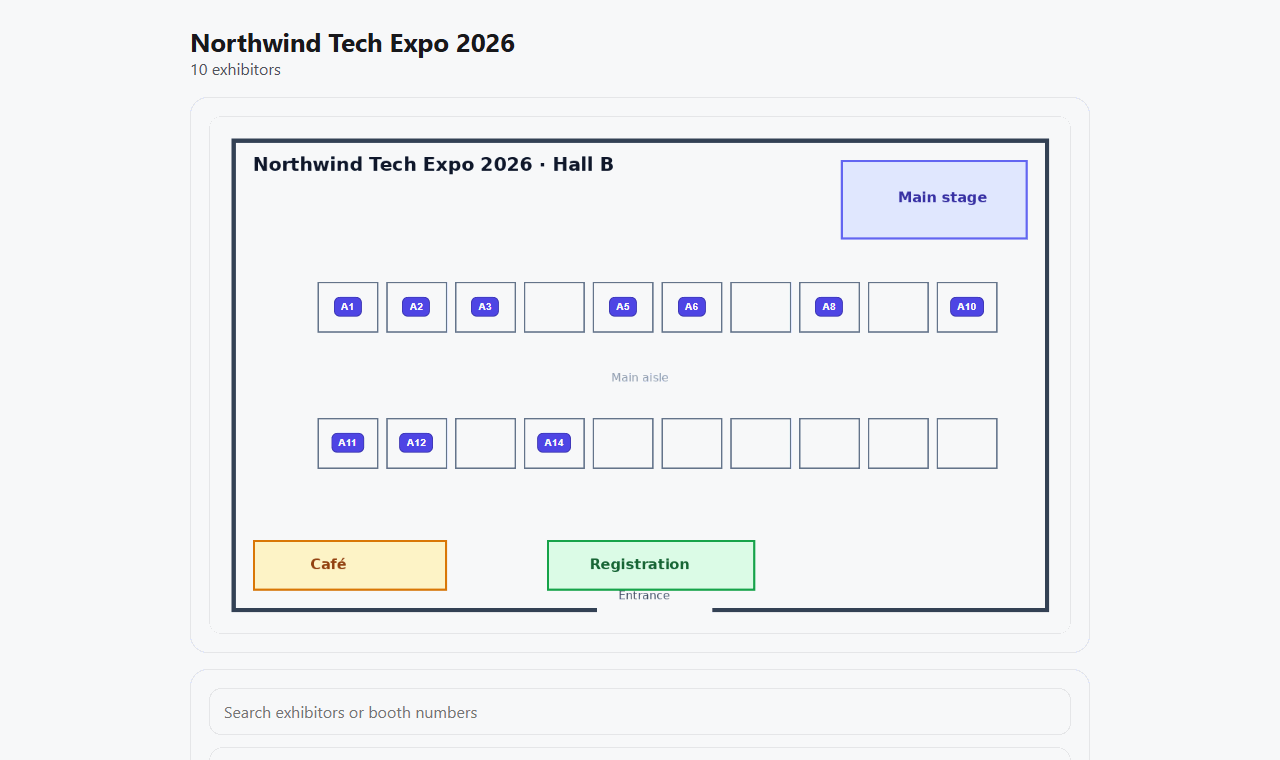
The link looks like badgetrac.com/e/<event id>/exhibitors. On the Growth plan and up, you can choose to publish it with the floor plan too.
What attendees see
- The event name and how many exhibitors there are.
- A search box for exhibitor names and booth numbers.
- Each exhibitor's name (linked to their website if they added one), their description and their booth number.
Only exhibitors who have joined appear. Until then, the page says Exhibitors will appear here soon.
Edit your listing (exhibitors)
-
Step 1: Open Booth
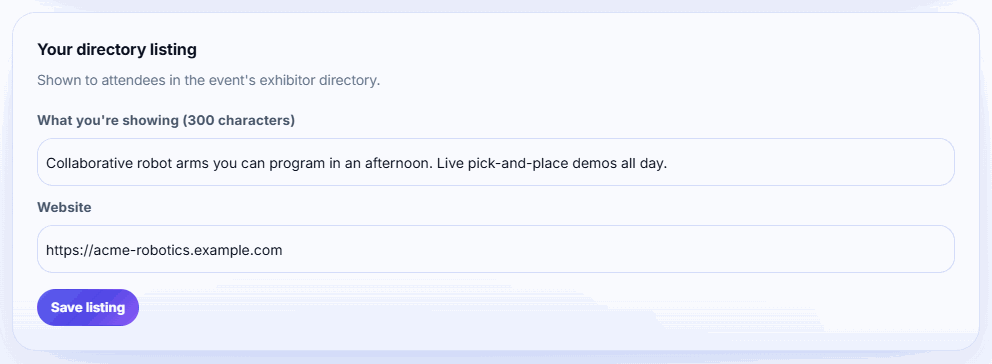
In your exhibitor workspace, click Booth. The Your directory listing card appears once the directory is published.
-
Step 2: Describe your company
Fill in What you're showing (up to 300 characters) and your Website.
-
Step 3: Save
Click Save listing.
Tip: Ask exhibitors to fill in their listing with an exhibitor checklist task, so the directory is complete before you share it.
To take the directory down, turn the switch off. The link then stops working.
Related guides
- Add booths and assign exhibitors Add booths one at a time or a whole row like A1 to A20, then assign each exhibitor to their booth.
- Upload a floor plan and sell booths online Upload your hall map, click to place booths, and let exhibitors pick and pay for a booth online.
- Invite exhibitors to your event Add exhibitors one by one or from a CSV, send their invite emails, and see who has joined and started scanning.
Still stuck?
Tell us what you were trying to do and what you saw. We'll help you sort it out.