
Send attendee emails with check-in QR codes
Email attendees a know-before-you-go message with their personal check-in QR code, using ready-made templates.
On this page
Plan: Included on every paid plan (Starter, Growth, Pro and Custom). It isn't available on the Free plan. Compare plans.
Send attendees a know-before-you-go email with their personal check-in QR code. At the door, staff or the kiosk scan the code from their phone and print their badge.
Send an email
-
Step 1: Open Emails
Open your event and click Emails in the left sidebar.
-
Step 2: Start from a template
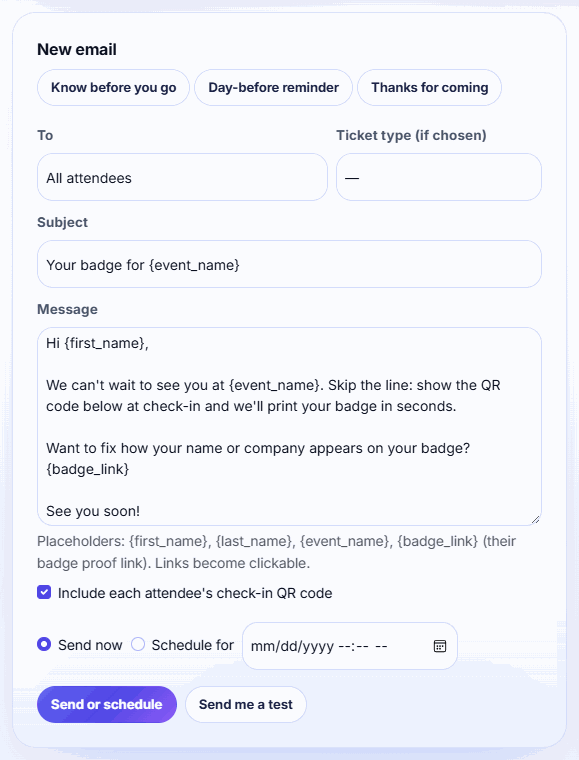
Click Know before you go, Day-before reminder or Thanks for coming, or write your own.
-
Step 3: Choose who gets it
In To, pick all attendees, attendees who have or haven't checked in, one ticket type, or exhibitors.
-
Step 4: Write the message
Edit the Subject and Message. Use placeholders such as
{first_name}to personalise it. -
Step 5: Add the QR code
Tick Include each attendee's check-in QR code.
-
Step 6: Test, then send
Click Send me a test and check your inbox. Then choose Send now and click Send or schedule.
Audiences
- All attendees
- Attendees who haven't checked in: no badge printed and not checked in on Eventbrite.
- Attendees who checked in
- Attendees with a ticket type: also choose the Ticket type.
- Exhibitors: the contacts of exhibitors who have joined. QR codes aren't added for exhibitors.
Cancelled, refunded and unsubscribed attendees are always left out, and each email address gets one copy.
Placeholders
Use these in the message. Each is replaced for every attendee:
{first_name}: becomes there if blank, so Hi {first_name} still reads well.{last_name}{event_name}: also works in the subject.{badge_link}: the attendee's badge proof link, where they can fix their details.
Messages are plain text. Links you paste become clickable.
The check-in QR code
With Include each attendee's check-in QR code ticked, the email adds Show this code at check-in: and the attendee's QR code. It's the same code printed on their badge, so the kiosk, volunteer stations and session door scanners all accept it.
Tip: The test email goes to your own login email, with [Test] in the subject. If the QR code is on, it uses the first attendee's code as a sample.
To send later instead of now, see Schedule emails and handle unsubscribes.
Related guides
- Schedule emails and handle unsubscribes Schedule reminders ahead of time, cancel a scheduled send, and understand who is left out when attendees unsubscribe.
- Send badge proofs to attendees Email attendees a link to check their name, company and title before you print. Their fixes survive Eventbrite syncs.
- Run a self check-in kiosk Turn a tablet or laptop into a check-in screen: attendees type their email or scan their ticket and their badge prints.
Still stuck?
Tell us what you were trying to do and what you saw. We'll help you sort it out.