
Schedule emails and handle unsubscribes
Schedule reminders ahead of time, cancel a scheduled send, and understand who is left out when attendees unsubscribe.
On this page
Plan: Included on every paid plan (Starter, Growth, Pro and Custom). It isn't available on the Free plan. Compare plans.
Write your reminders once and let Badgetrac send them at the right time, for example a know-before-you-go email a week out and a day-before reminder.
Schedule an email
-
Step 1: Write the email
On the Emails page, fill in To, Subject and Message as usual.
-
Step 2: Pick a time
Choose Schedule for and pick a date and time in the future.
-
Step 3: Schedule it
Click Send or schedule. It appears under Sent and scheduled as Scheduled.
-
Step 4: Cancel if plans change
Click Cancel next to a scheduled email. It goes back to Draft.
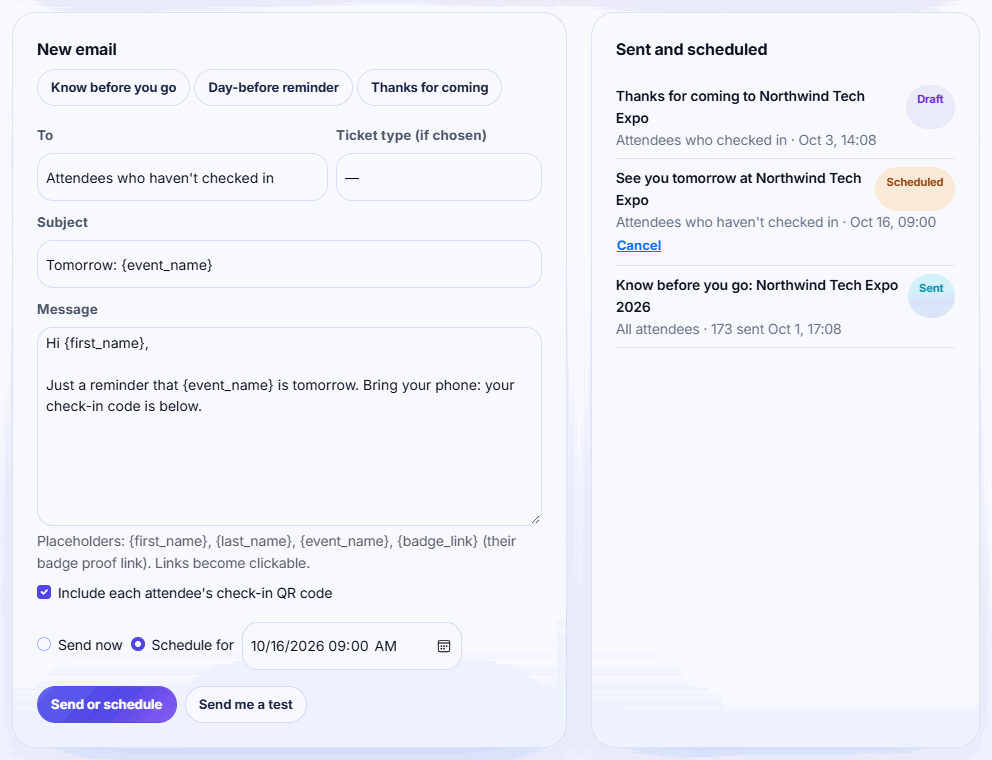
Scheduled times are in UTC. The date picker doesn't use your time zone. Convert your local time to UTC before you schedule. For example, 9:00 in New York (EDT) is 13:00 UTC.
Scheduled emails go out within about 5 minutes of the chosen time. The recipient list is built when the email is sent, not when you schedule it, so late registrations are included.
Email statuses
- Draft: saved, or a cancelled scheduled email.
- Scheduled: waiting for its send time.
- Sending: going out now.
- Sent: shows how many people it went to, and when.
Unsubscribes
Every email ends with You are receiving this because of [event]. Unsubscribe. Clicking it opens a page where the attendee confirms with Unsubscribe.
- The opt-out covers emails about that event only, for that email address.
- Unsubscribed attendees are left out of every later campaign for the event, automatically.
- The Exhibitors audience isn't affected by attendee unsubscribes.
Tip: Keep emails few and useful (logistics, QR code, schedule changes). Fewer emails means fewer unsubscribes before the one that matters.
To write the email itself, see Send attendee emails with check-in QR codes.
Related guides
- Send attendee emails with check-in QR codes Email attendees a know-before-you-go message with their personal check-in QR code, using ready-made templates.
- Send badge proofs to attendees Email attendees a link to check their name, company and title before you print. Their fixes survive Eventbrite syncs.
- See exhibitor results and ROI Organizers see leads per exhibitor and email results; exhibitors get totals, hot leads, busiest hour and cost per lead.
Still stuck?
Tell us what you were trying to do and what you saw. We'll help you sort it out.