
Import attendees from a CSV
Upload a spreadsheet of attendees with names, emails, companies and ticket types. Re-importing updates people instead of duplicating.
On this page
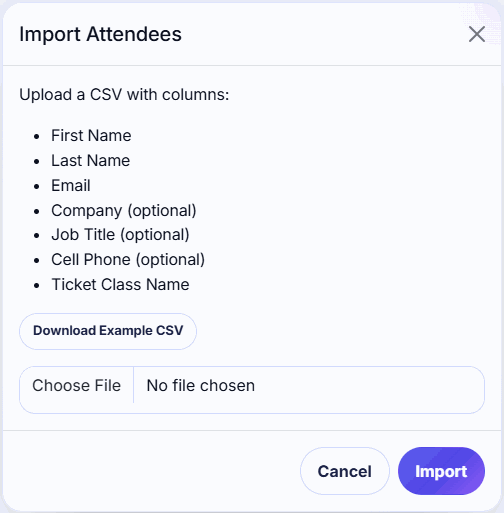
Use a CSV import when your attendees come from another registration tool, a spreadsheet or a CRM. You can import into any event, including Eventbrite events.
Columns
| Column | Required | Also accepted |
|---|---|---|
First Name | Yes | first_name, firstname |
Last Name | Yes | last_name, lastname |
Email | Yes | Email Address |
Company | No | Company Name, Organization, Employer |
Job Title | No | Title, Position, Role |
Cell Phone | No | Mobile, Phone |
Ticket Class Name | No | Ticket Class |
Column names aren't case-sensitive, and the column order doesn't matter. Extra columns are ignored. The example file looks like this:
First Name,Last Name,Email,Company,Job Title,Cell Phone,Ticket Class NameAda,Lovelace,ada@example.com,Analytical Engines,Engineer,555-0100,VIP
Import a CSV
-
Step 1: Open Attendees
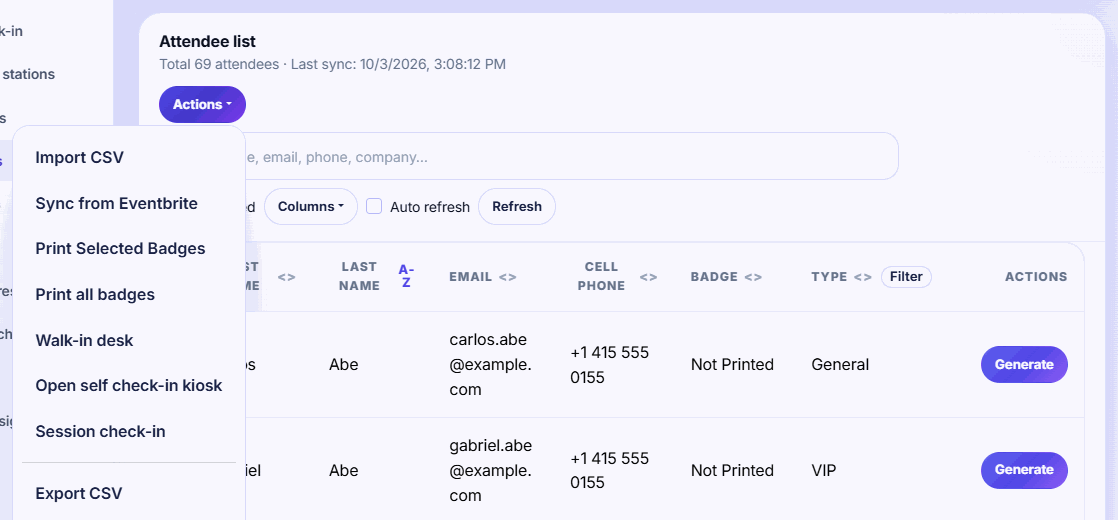
Open your event and go to Attendees.
-
Step 2: Download the example
Choose Actions → Import CSV, then click Download Example CSV.
-
Step 3: Fill in your data
Keep the header row and add one attendee per row.
First Name,Last NameandEmailare required. -
Step 4: Save as CSV
Save the file as CSV. In Excel choose CSV (Comma delimited); in Google Sheets choose File → Download → Comma-separated values.
-
Step 5: Upload it
Back in the Import Attendees window, choose the file and click Import.
-
Step 6: Check the result
The summary shows how many attendees were created and updated, and the first problem rows with their row numbers.
Re-importing and duplicates
- Attendees are matched by email within the event (upper or lower case doesn't matter). A matching row updates the person instead of adding a duplicate.
- Blank cells don't erase existing names, companies, titles or phones. The ticket class is always replaced, even with a blank.
- If the same email appears twice in one file, the later row wins.
Common problems
- "Row N: Invalid email format." Fix that row's email and import again. Other rows were still imported.
- "An error occurred during import." Check that the file is a
.csvunder 5 MB and the header row hasFirst Name,Last NameandEmail. If you saved from Excel as CSV UTF-8, try plain CSV (Comma delimited) instead. - Accents look wrong: save the file with UTF-8 encoding.
Imports and your plan
An import is never blocked by your plan. If it takes the event near or over its attendee limit, you'll see Heads up: plan limit or Plan limit reached after the import, with a See plans button. On the Free plan, printing pauses above 75 attendees. See Choose a plan and what happens if you go over.
Related guides
- Create an event without Eventbrite Set up an event by hand when your registrations live somewhere else, then add attendees from a CSV or at the door.
- Sync attendees from Eventbrite Pull every Eventbrite registration into Badgetrac, re-sync before the event, and see how cancelled tickets are handled.
- Choose a plan and what happens if you go over How attendee limits work, which tickets count, the grace margin over your limit, and how to upgrade without losing what you paid.
Still stuck?
Tell us what you were trying to do and what you saw. We'll help you sort it out.