
See exhibitor results and ROI
Organizers see leads per exhibitor and email results; exhibitors get totals, hot leads, busiest hour and cost per lead.
On this page
After the show, organizers and exhibitors both want to know how it went. Badgetrac totals each exhibitor's leads and emails every exhibitor their own results.
For organizers
-
Step 1: Open Exhibitor results
Open your event and click Exhibitor results in the left sidebar.
-
Step 2: Review the table
Check leads, hot and qualified counts, notes, busiest hour and cost per lead for each exhibitor.
-
Step 3: Download or email
Click Download CSV for a spreadsheet, or Email results now to send every exhibitor their numbers.
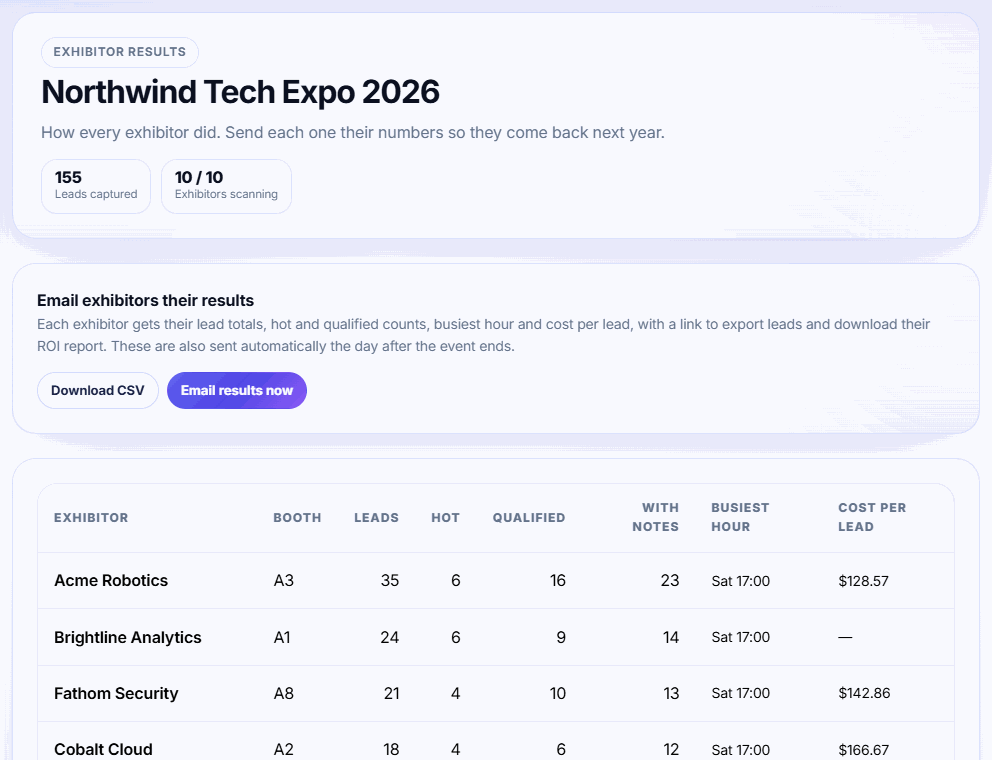
What the organizer table shows
One row per exhibitor who has joined, most leads first: Booth, Leads, Hot, Qualified, With notes, Busiest hour and Cost per lead. The CSV has the same columns plus each exhibitor's email.
Tip: Check the table on the morning of the first day. Exhibitors with no leads may need help signing in to the scanner.
The results email
Exhibitors get an email titled Your results from [event], sent in your organization's name. It lists leads captured, hot leads, qualified leads and leads with notes, plus busiest hour and cost per lead when known. It links to their dashboard to export leads and download the ROI report.
The email is sent automatically the day after the event ends, once per event. Click Email results now to send it sooner; the card shows when it was last sent.
For exhibitors
-
Step 1: Open your dashboard
In your exhibitor workspace, click Dashboard.
-
Step 2: Add your booth cost
Under Quick actions, enter your Booth cost and click Save. This gives you a cost per lead.
-
Step 3: Download the ROI report
Click Download ROI report (PDF) to share results with your team.
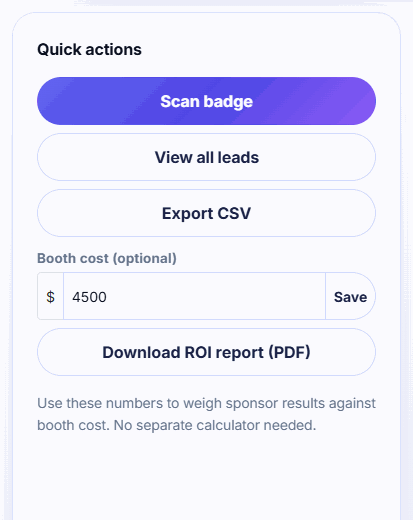
Cost per lead is your booth cost divided by your number of leads. Only you can enter your booth cost, and it's also shown to the organizer in their results table.
The dashboard also shows scans today, your tag breakdown, scan activity for the last 7 days and your most recent leads. It refreshes every 30 seconds.
Related guides
- Export leads or send them to your CRM Download your leads as a CSV for HubSpot or Salesforce, or push every lead to a webhook the moment it's scanned.
- Invite exhibitors to your event Add exhibitors one by one or from a CSV, send their invite emails, and see who has joined and started scanning.
- Rate, tag and add notes to leads Tag each lead hot, qualified or cold and add notes so your sales team knows who to call first.
Still stuck?
Tell us what you were trying to do and what you saw. We'll help you sort it out.