
Upgrade an event to a bigger plan
Move an event to a larger plan when it outgrows its limit. You only pay the difference from what you already paid.
On this page
When an event grows past its plan, upgrade it to the next plan. Upgrades are prorated: you pay only the difference between the new plan and what you've already paid for this event.
When to upgrade
The plan card on the event overview and in Event settings warns you:
- You've used …% of this plan's attendees: you're at 80% or more. Upgrade before event day.
- You're over this plan's … cap: everything still works up to 10% over the limit.
- Printing and exports are paused: you're past the grace margin. Upgrade to turn printing back on.
Upgrade the event
-
Step 1: Open Event settings
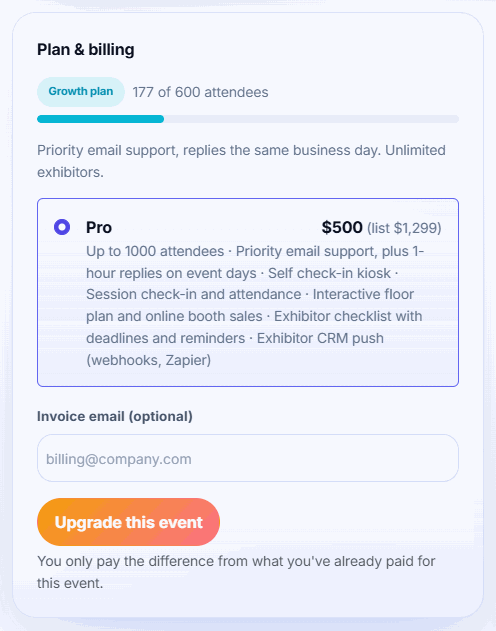
Open the event and click Event settings. The Plan & billing card shows your plan and how many attendees you've used.
-
Step 2: Pick the new plan
Choose a bigger plan. The price shown is what you pay now: the new plan's price minus what you've already paid for this event.
-
Step 3: Add an invoice email
Optionally enter an Invoice email so the receipt goes to your finance team.
-
Step 4: Pay
Click Upgrade this event and pay on the secure checkout page.
-
Step 5: Carry on
You're sent back to Badgetrac with Payment successful. Printing and exports work again straight away.
What you'll pay
| Plan | List price | Attendees |
|---|---|---|
| Starter | $399 | Up to 250 |
| Growth | $799 | Up to 600 |
| Pro | $1,299 | Up to 1,000 |
The upgrade price is the new plan's list price minus everything already paid for the event. If you paid with a promo code, the credit is what you actually paid. If the event used a prepaid pack event, the credit is the pack's per-event price.
The picker only shows plans big enough for your current attendee count. Promo codes can't be used on upgrades.
Need more than 1,000 attendees? Self-serve plans stop there. Request a custom plan. Events on a Custom plan, or bought before the current plans, can't be upgraded in the app; email info@badgetrac.com.
Receipts
A receipt with a PDF invoice is emailed after each payment. Past payments are listed under Account settings → Billing → Payment History.
Related guides
- Choose a plan and what happens if you go over How attendee limits work, which tickets count, the grace margin over your limit, and how to upgrade without losing what you paid.
- Save with multi-event packs Prepay for several events at a discount and use one on any of your organization's events within a year.
- Request a custom plan Ask for a quote for larger events, priority support, invoicing, or several events a year. Pay from event settings once agreed.
Still stuck?
Tell us what you were trying to do and what you saw. We'll help you sort it out.