
Complete your exhibitor checklist
Confirm details, answer questions, upload files and list your booth staff before the show, all in one place.
On this page
Plan: Exhibitor checklist with deadlines and reminders is included on the Growth and Pro plans and on Custom plans. On a smaller plan you'll see an upgrade page instead. Compare plans.
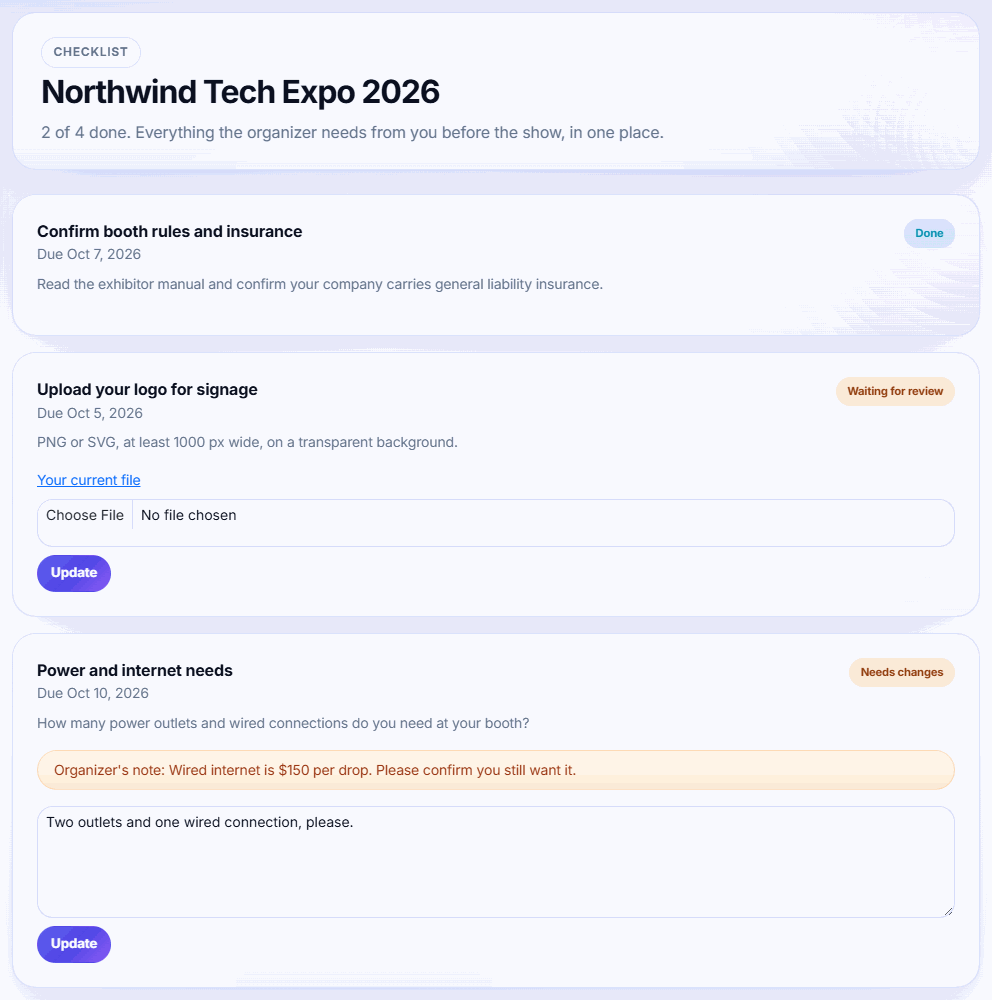
Your checklist holds everything the organizer needs from you before the show: confirmations, answers, files such as your logo, and your booth staff list. Each task shows its due date. Overdue tasks are shown in red.
Complete your tasks
-
Step 1: Open Checklist
In your exhibitor workspace, click Checklist. The top shows how many tasks are done.
-
Step 2: Do each task
Tick I confirm, type an answer, choose a file, or list your booth staff, depending on the task.
-
Step 3: Submit
Click Submit. Answers and uploads may show Waiting for review until the organizer approves them.
-
Step 4: Fix anything sent back
Tasks marked Needs changes show the organizer's note. Make the change and click Update.
How to complete each type of task
| Task | What to do |
|---|---|
| Confirm | Tick I confirm and submit. |
| Answer a question | Type your answer (up to 5,000 characters) and submit. |
| Upload a file | Choose a PNG, JPG, WebP, PDF, EPS, AI or ZIP file under 10 MB. Your current file stays linked so you can check it. |
| List booth staff | One person per line as Full name, email, for example Jane Doe, jane@company.com. |
Booth staff badges
Each person you list gets an attendee record with the ticket type Exhibitor staff and your company name, so the organizer can print their badge. The task tells you how many people you can list. You can update a staff list at any time, even after it's done.
Statuses
- Done: finished. Approved answers and uploads can't be changed.
- Waiting for review: the organizer is checking your answer or file.
- Needs changes: read the organizer's note, fix it and click Update. You'll also get an email.
Tip: Required tasks that are due within 3 days, or overdue, trigger one reminder email a day until they're done.
Related guides
- Collect exhibitor tasks with a checklist Ask exhibitors for logos, answers, confirmations and staff lists with due dates, review what they send, and let reminders chase.
- Install the lead scanning app and scan badges Add the Badgetrac scanner to your phone's home screen, download the attendee list, and scan badge QR codes, even offline.
- Publish an exhibitor directory Share a public page listing your exhibitors and booth numbers, with descriptions and links they write themselves.
Still stuck?
Tell us what you were trying to do and what you saw. We'll help you sort it out.