
Install the lead scanning app and scan badges
Add the Badgetrac scanner to your phone's home screen, download the attendee list, and scan badge QR codes, even offline.
On this page
The Badgetrac Lead Scanner is a web app. There's nothing to download from an app store: you open it in your phone's browser and add it to your home screen. It keeps working when the hall Wi-Fi doesn't.
Before the show
- Accept the organizer's invite and create your account. See how invites work.
- Use a phone or tablet with a rear camera. Recent iPhones and Android phones work well.
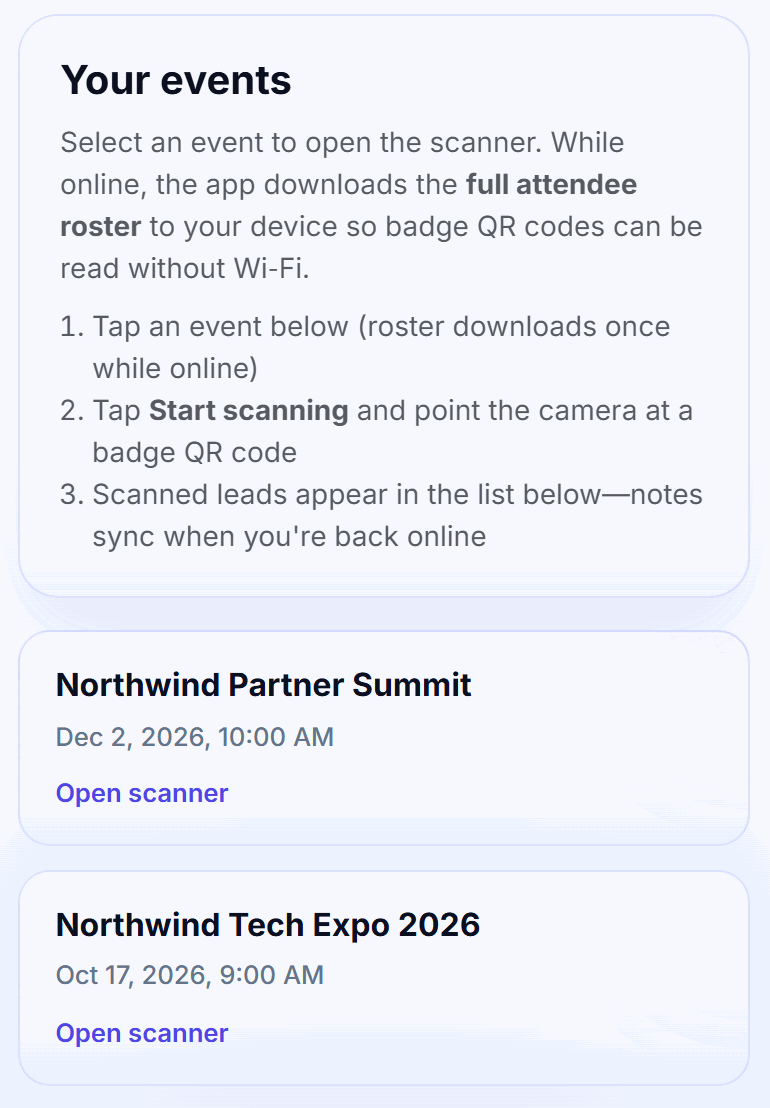
- Open the scanner once while you have internet, so the attendee list downloads.
Install the app
-
Step 1: Open the scanner
On your phone, open
badgetrac.com/sponsor/app, or tap Scanner app in your exhibitor workspace. -
Step 2: Sign in
Enter your Username and Password and tap Sign in. If you're already signed in on the website, this happens automatically.
-
Step 3: Add it to your home screen
On iPhone, tap Share → Add to Home Screen. On Android, open the browser menu and choose Install app or Add to Home screen.
Tip: There's no install button inside the app. Use your browser's menu as described above. Once installed, the scanner opens full screen like any other app.
Scan badges
-
Step 1: Pick your event while online
Under Your events, tap Open scanner. The app downloads the attendee list so scanning works without signal.
-
Step 2: Start scanning
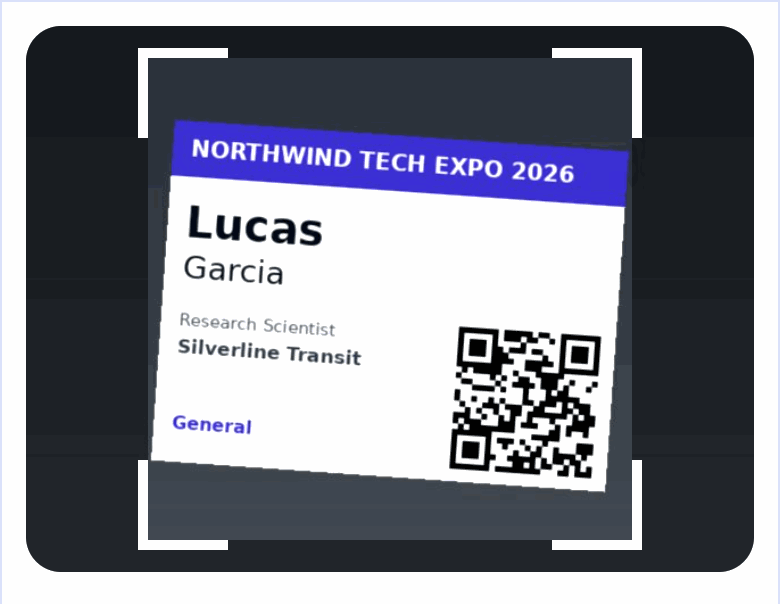
Tap Start scanning and allow camera access. Point the camera at the QR code on the badge.
-
Step 3: Add a tag or note
After each scan, pick a Lead status, type a note if you like, and tap Save.
-
Step 4: Keep going
Scanned leads appear in the list. Rows marked Pending sync upload by themselves when you're back online.
Scanning without internet
The app stores the attendee list on your phone, so scans work offline:
- The status pill at the top shows Online, Offline or Syncing….
- Scans and notes made offline are saved on the phone and marked Pending sync. They upload when you reconnect, and every 45 seconds while you're online.
- If something fails to upload, it appears under Sync issues. Tap Retry, or Retry all.
- The attendee list refreshes by itself once a day when you're online. Tap Refresh roster to update it sooner, for example after late registrations.
"Badge not in downloaded roster" means the attendee registered after your list was downloaded. Connect to the internet, tap Refresh roster, and scan again.
Scanning someone twice
Scanning the same badge again doesn't create a duplicate. The app opens the existing lead with This attendee was scanned before, so you can update the note or status.
Camera problems
If you see Camera permission, allow camera access for the site in your browser settings. On iPhone: Settings → Safari → Camera → Allow. Then reopen the scanner.
If your organizer sells lead scanning, you'll need a license before new scans are saved. See Buy a lead scanning license.
Related guides
- Rate, tag and add notes to leads Tag each lead hot, qualified or cold and add notes so your sales team knows who to call first.
- Export leads or send them to your CRM Download your leads as a CSV for HubSpot or Salesforce, or push every lead to a webhook the moment it's scanned.
- Complete your exhibitor checklist Confirm details, answer questions, upload files and list your booth staff before the show, all in one place.
Still stuck?
Tell us what you were trying to do and what you saw. We'll help you sort it out.