
Export leads or send them to your CRM
Download your leads as a CSV for HubSpot or Salesforce, or push every lead to a webhook the moment it's scanned.
On this page
You can take your leads out of Badgetrac two ways: download a CSV at any time, or send every lead to your CRM automatically through a webhook.
Export a CSV
-
Step 1: Open your leads
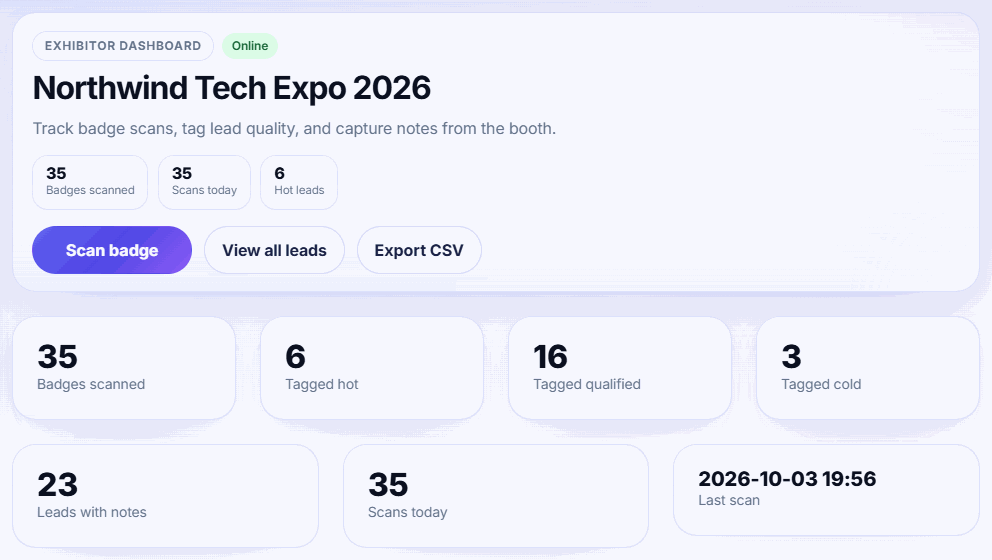
In your exhibitor workspace, open Leads (or Dashboard).
-
Step 2: Download
Click Export CSV. The file includes every lead with its status, note and scan time.
-
Step 3: Import it
Import the file into your CRM or spreadsheet. Map
Emailas the unique key.
CSV columns
The export has one row per lead with these columns:
First Name, Last Name, Company, Job Title, Cell Phone, Email, Lead Status, Scanned At, Note
In the scanner app, Export CSV builds the file on your phone, so it works offline. It adds a Sync Status column. Export from server downloads the synced copy instead. For a step-by-step HubSpot or Salesforce import, see How to import event leads into HubSpot or Salesforce.
Connect a CRM webhook
-
Step 1: Create a webhook URL
In Zapier, Make, HubSpot workflows or your own server, create a webhook that accepts JSON and copy its
https://URL. -
Step 2: Save it in Badgetrac
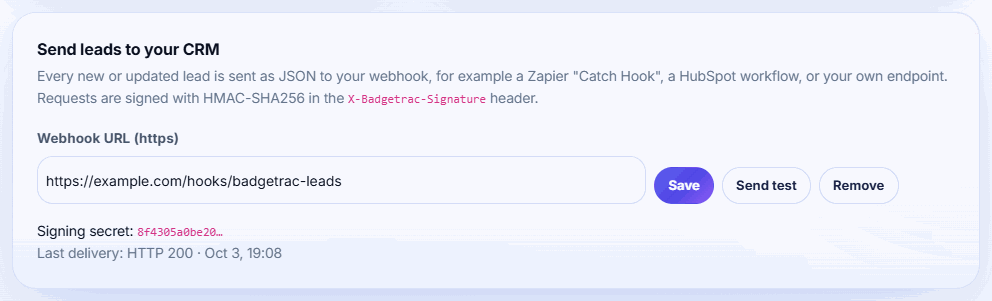
Open Dashboard, find Send leads to your CRM, paste the URL into Webhook URL (https) and click Save.
-
Step 3: Send a test
Click Send test. Last delivery should show HTTP 200.
-
Step 4: Copy the signing secret
Copy the Signing secret if your server checks signatures.
Plan: CRM push works when the event is on the Pro plan or a Custom plan. CSV export works on every plan.
What Badgetrac sends
Every time a lead is saved (a new scan, a note or a status change), Badgetrac POSTs JSON to your URL:
type:lead.updated(ortestfor a test)lead_id,lead_status,note,scanned_at,updated_atevent:id,nameattendee:id,first_name,last_name,email,company,job_title,cell_phone,ticket_type
The same lead can arrive more than once as you update it. Use lead_id to update the record in your CRM instead of creating a new one.
Checking the signature
Each request has an X-Badgetrac-Signature header in the form sha256=<hex>. It's an HMAC-SHA256 of the exact raw request body, using your signing secret as the key. Compute the same value on your server and compare. Reject the request if they don't match.
Delivery and retries
- The URL must start with
https://and point to a public internet address. - Badgetrac waits 5 seconds for a reply and doesn't follow redirects.
- Network errors and 5xx responses are retried up to 3 times, a minute apart. 4xx responses aren't retried.
- Last delivery on your dashboard shows the latest result, for example HTTP 200 or Couldn't reach your webhook (network error).
Click Remove to stop sending.
Related guides
- Rate, tag and add notes to leads Tag each lead hot, qualified or cold and add notes so your sales team knows who to call first.
- See exhibitor results and ROI Organizers see leads per exhibitor and email results; exhibitors get totals, hot leads, busiest hour and cost per lead.
- Install the lead scanning app and scan badges Add the Badgetrac scanner to your phone's home screen, download the attendee list, and scan badge QR codes, even offline.
Still stuck?
Tell us what you were trying to do and what you saw. We'll help you sort it out.