
Handle reprints and read the print log
Reprint lost or wrong badges, unmark badges printed by mistake, and see reprints by reason and prints by desk.
On this page
Every badge print is logged with who printed it, where, and why. Use the log to spot problems on event day, such as a desk that keeps reprinting badges with wrong details.
Reprint a badge
-
Step 1: Find the attendee
On the Attendees page, untick Not printed or search for the person.
-
Step 2: Print again
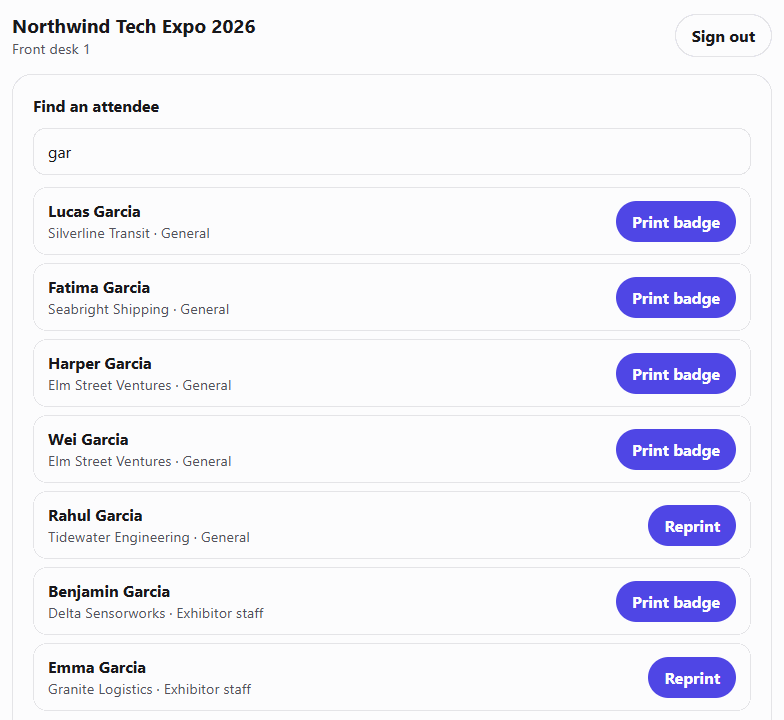
Click Generate on their row and print the PDF. At a volunteer station, click Reprint.
-
Step 3: Give a reason
If you turned on reprint reasons, the station asks why: wrong details, lost, damaged or other. It's optional.
Reprint reasons
Each print is logged with one of these reasons:
| Reason | When it's used |
|---|---|
| First print | The attendee's badge hadn't been printed yet. |
| Wrong details | A volunteer chose 1 when reprinting. |
| Lost badge | A volunteer chose 2, or the attendee printed again at the kiosk. |
| Damaged or misprinted | A volunteer chose 3. |
| Other reprint | Any other reprint, including reprints from the Attendees page, batch printing, and stations where the question was skipped. |
Volunteers are only asked for a reason if you turn on Ask volunteers why they reprint a badge on the Volunteer stations page. See Set up volunteer stations.
Unmark badges printed by mistake
-
Step 1: Select the rows
On the Attendees page, untick Not printed and tick the printed rows you want to reset.
-
Step 2: Unmark them
Click Unmark on a row, or the Unmark printed Selected Badges button for several. They go back to Not Printed.
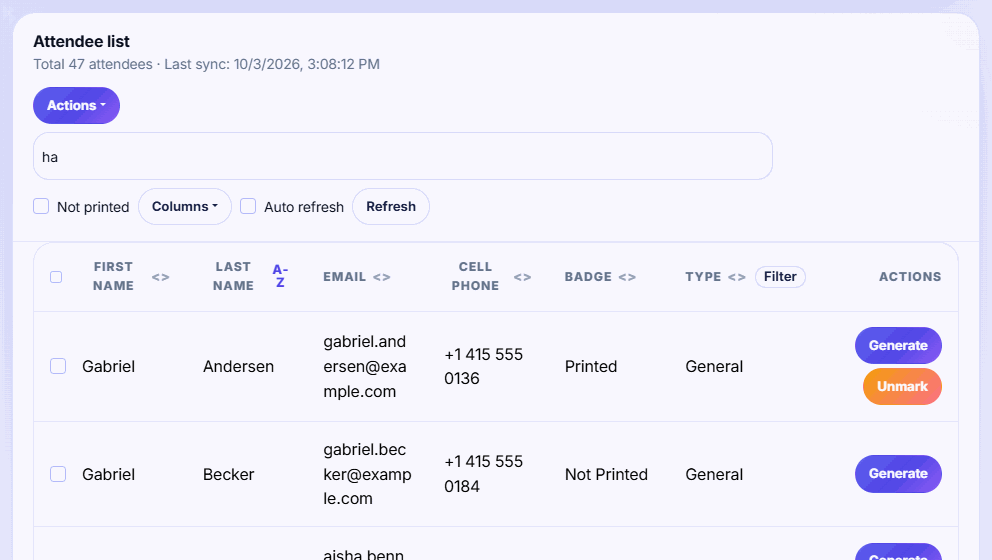
Unmarking only resets the printed status. The print log keeps the original print, and the next print is logged as a first print.
Where to see the print log
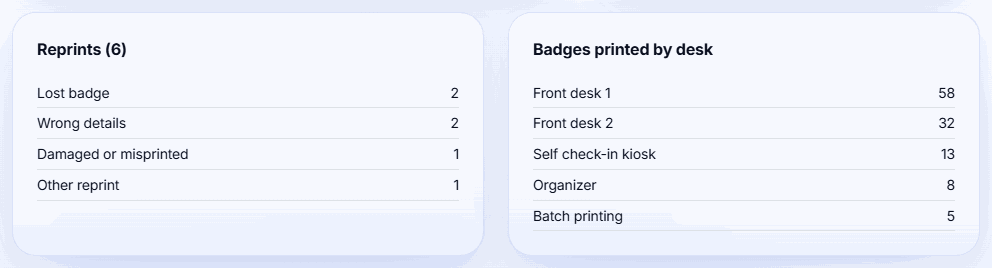
Open Live check-in from the event sidebar. Two cards come from the log:
- Reprints: the total, broken down by reason.
- Badges printed by desk: each volunteer station by name, plus Self check-in kiosk, Batch printing and Organizer.
The Volunteer stations page also shows how many badges each station printed. See Watch check-in live and keep a backup list.
Badges changed after printing
If an attendee fixes their details through a badge proof after their badge was printed, they're listed under Changed after printing on the event overview. Click a name to print the corrected badge.
Screenshots
Related guides
- Print badges one at a time or in batches Print a single badge as people arrive, or print a selection or every badge as one PDF before the event.
- Set up volunteer stations Give each check-in desk its own link and 6-digit PIN so volunteers can search, print and register walk-ins without your password.
- Watch check-in live and keep a backup list Follow arrivals, no-shows, reprints and desks in real time, and print a paper backup list in case the Wi-Fi drops.
Still stuck?
Tell us what you were trying to do and what you saw. We'll help you sort it out.