
Set up volunteer stations
Give each check-in desk its own link and 6-digit PIN so volunteers can search, print and register walk-ins without your password.
On this page
A volunteer station is a sign-in for one desk. Volunteers get a link and a PIN instead of your password. They only see check-in tools for this one event: search, print, reprint, walk-in registration and session doors.
Create a station
-
Step 1: Open Volunteer stations
Open your event and click Volunteer stations in the left sidebar.
-
Step 2: Name the desk
Under New station, type a name such as Front desk 2 and click Create station. Create one station per desk or door, so the print log shows who printed what.
-
Step 3: Copy the link and PIN
Copy the Link and the 6-digit PIN from the box that appears. The PIN is shown only once, so send both to the volunteer now.
-
Step 4: Decide on reprint reasons
Turn on Ask volunteers why they reprint a badge if you want a reason logged for every reprint. Volunteers can skip the question.
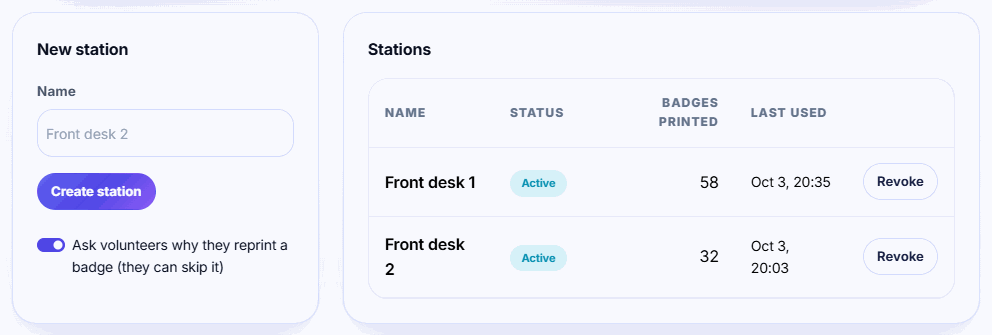
Tip: Name stations after the physical desk (Door A, VIP desk). Then the Badges printed and Last used columns, and the live dashboard, show which desk is busy.
Sign in as a volunteer
-
Step 1: Open the station link
On the desk laptop or tablet, open the link the organizer sent you.
-
Step 2: Enter the PIN
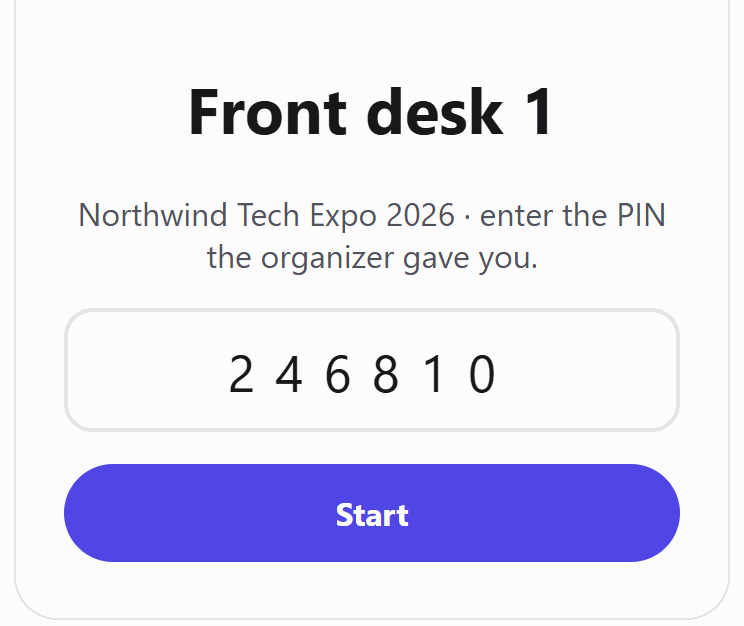
Type the 6-digit PIN and click Start. You land on the station desk for that event.
-
Step 3: Find and print
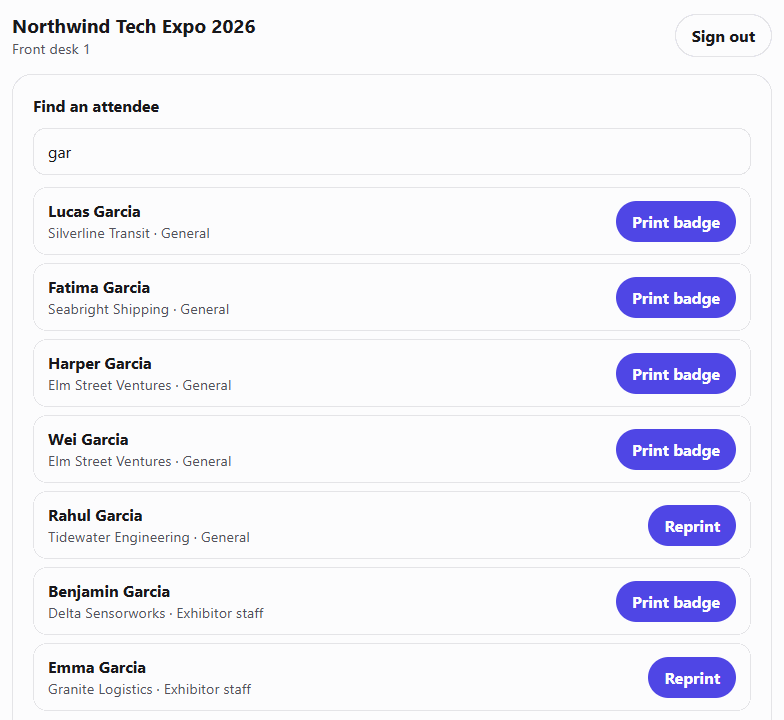
Type at least 2 letters of a name, company or email, or scan a ticket. Click Print badge (or Reprint) next to the right person. The badge opens as a PDF in a new tab; print it from there.
-
Step 4: Sign out at the end
Click Sign out at the top of the desk when your shift ends.
What volunteers can do
- Find an attendee: search by part of a name or company, an exact email, or a scanned ticket or badge. Up to 15 results show at once.
- Print and reprint: cancelled or refunded tickets show Ticket cancelled and can't be printed.
- Register a walk-in: the Register a walk-in card registers the person and prints the badge in one click.
- Scan session doors: if the event has sessions, a Session doors card opens a door scanner for each one (Growth plan and up).
If you turned on reprint reasons, every reprint asks: 1 = wrong details, 2 = lost, 3 = damaged, 4 = other. A blank answer still prints and logs Other reprint. Cancelling the question cancels the print.
PINs and lockouts
5 wrong PINs lock the station for 15 minutes. The lock applies to the station link, not to one device, so a mistyped PIN on one tablet locks out every volunteer using that link. Each new wrong try restarts the 15 minutes.
You can't show a PIN again or change it. If a PIN is lost, or a link has been shared too widely:
- Click Revoke next to the station. Its volunteer is signed out right away.
- Create a new station and send the new link and PIN.
Revoked stations stay in the table marked Revoked, so their print counts aren't lost.
How long volunteers stay signed in
A volunteer stays signed in on that browser until they click Sign out, you revoke the station, or two weeks pass. Ask volunteers to sign out of shared devices at the end of the day.
If printing is paused
If the desk shows Badge printing is paused, the event has more active attendees than its plan covers, even counting the 10% grace. Upgrade the event from Event settings; volunteers don't need to sign in again. See Choose a plan and what happens if you go over.
Related guides
- Manage volunteers and shifts Plan volunteer shifts, build a roster, open a public sign-up form, check volunteers in on the day and give them badges.
- Register walk-ins at the door Add people who arrive without a ticket, print their badge on the spot, and let the kiosk take self-registrations.
- Run a self check-in kiosk Turn a tablet or laptop into a check-in screen: attendees type their email or scan their ticket and their badge prints.
- Handle reprints and read the print log Reprint lost or wrong badges, unmark badges printed by mistake, and see reprints by reason and prints by desk.
Still stuck?
Tell us what you were trying to do and what you saw. We'll help you sort it out.