
Check attendees into sessions
Create sessions with an optional capacity, scan badges at the door from any phone, and export attendance as CSV.
On this page
Plan: Session check-in and attendance is included on the Growth and Pro plans and on Custom plans. On a smaller plan you'll see an upgrade page instead. Compare plans.
Session check-in records who attended each talk, workshop or room. Use it for continuing-education credits, room planning and sponsor reports. It's separate from event check-in: scanning someone into a session doesn't print their badge.
Add your sessions
-
Step 1: Open Session check-in
On your event's Attendees page, choose Actions → Session check-in.
-
Step 2: Add a session
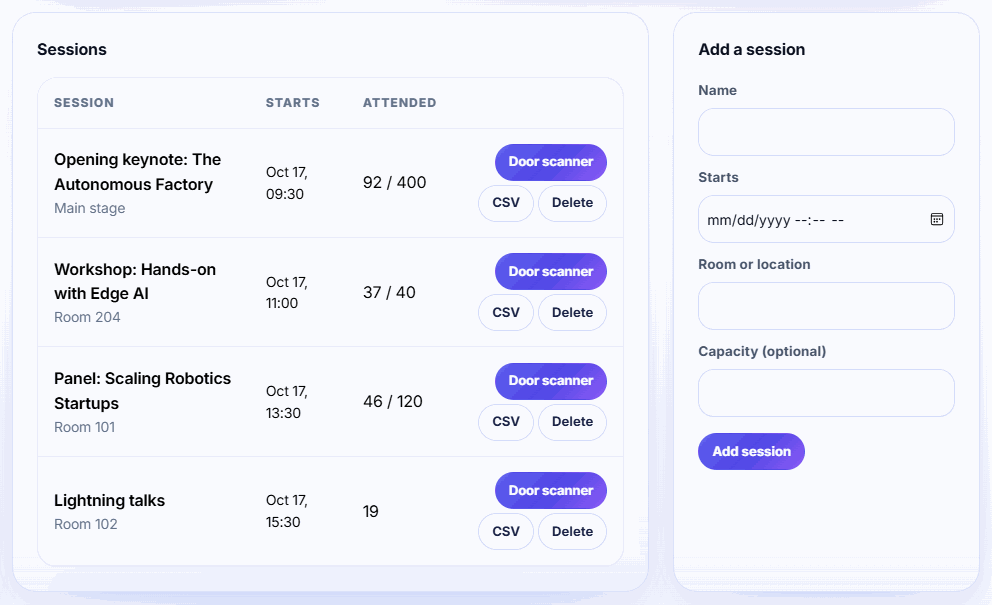
Under Add a session, enter a Name, pick when it Starts, and add a Room or location. Capacity is optional.
-
Step 3: Save it
Click Add session. Repeat for each talk or workshop. Sessions can't be edited later, so delete and re-add one if a detail changes.
Scan at the door
-
Step 1: Open the door scanner
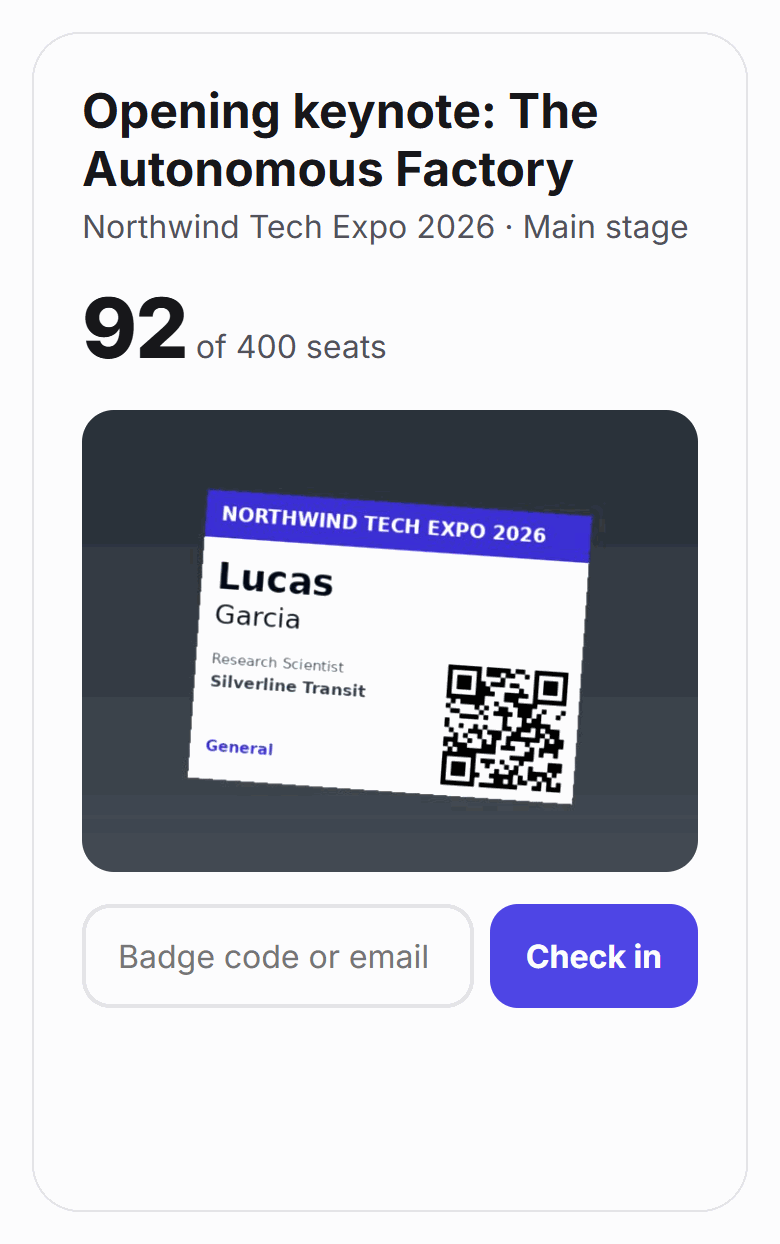
Click Door scanner next to the session on a phone or tablet. Allow camera access when asked.
-
Step 2: Scan badges
Point the camera at each badge QR code. You can also type a badge code or exact email and click Check in.
-
Step 3: Read the result
A green message confirms the check-in. Repeat scans show already checked in and are counted once.
-
Step 4: Export attendance
After the session, click CSV next to it to download who attended and when.
Tip: Door staff don't need your login. Create a volunteer station: its desk has a Session doors card with a scanner for every session.
What the scanner tells you
| Message | What it means |
|---|---|
| Name checked in. | Recorded. |
| Name is already checked in. | A repeat scan. The person is only counted once. |
| The session is now at capacity. | The session is full. Check-ins still work; it's a warning, not a block. |
| Name's ticket was cancelled. | Cancelled or refunded tickets are refused. |
| No attendee matches that badge. | Try typing the email they registered with. |
The scanner matches badge QR codes, Eventbrite ticket codes and exact emails. It doesn't search by name.
The attendance CSV
The CSV button downloads one row per person, sorted by check-in time, with these columns: First Name, Last Name, Email, Company, Job Title, Checked In At, Session.
Related guides
- Set up volunteer stations Give each check-in desk its own link and 6-digit PIN so volunteers can search, print and register walk-ins without your password.
- Watch check-in live and keep a backup list Follow arrivals, no-shows, reprints and desks in real time, and print a paper backup list in case the Wi-Fi drops.
- Turn on contact exchange Let attendees share their email, phone and LinkedIn when someone scans their badge with a phone camera. It's opt-in per attendee.
Still stuck?
Tell us what you were trying to do and what you saw. We'll help you sort it out.