
Sign up for volunteer shifts
Volunteering at an event? Pick your shifts from the organizer's link, manage them on your own page and find your desk on the day.
On this page
When an organizer asks for volunteers, they send you a sign-up link. You don't need a Badgetrac account: your email address and a private link are all you need to pick, change and cancel your shifts.
Sign up
-
Step 1: Open the sign-up link
Open the volunteer link the organizer shared. If the page says not found, sign-up is closed, so ask the organizer.
-
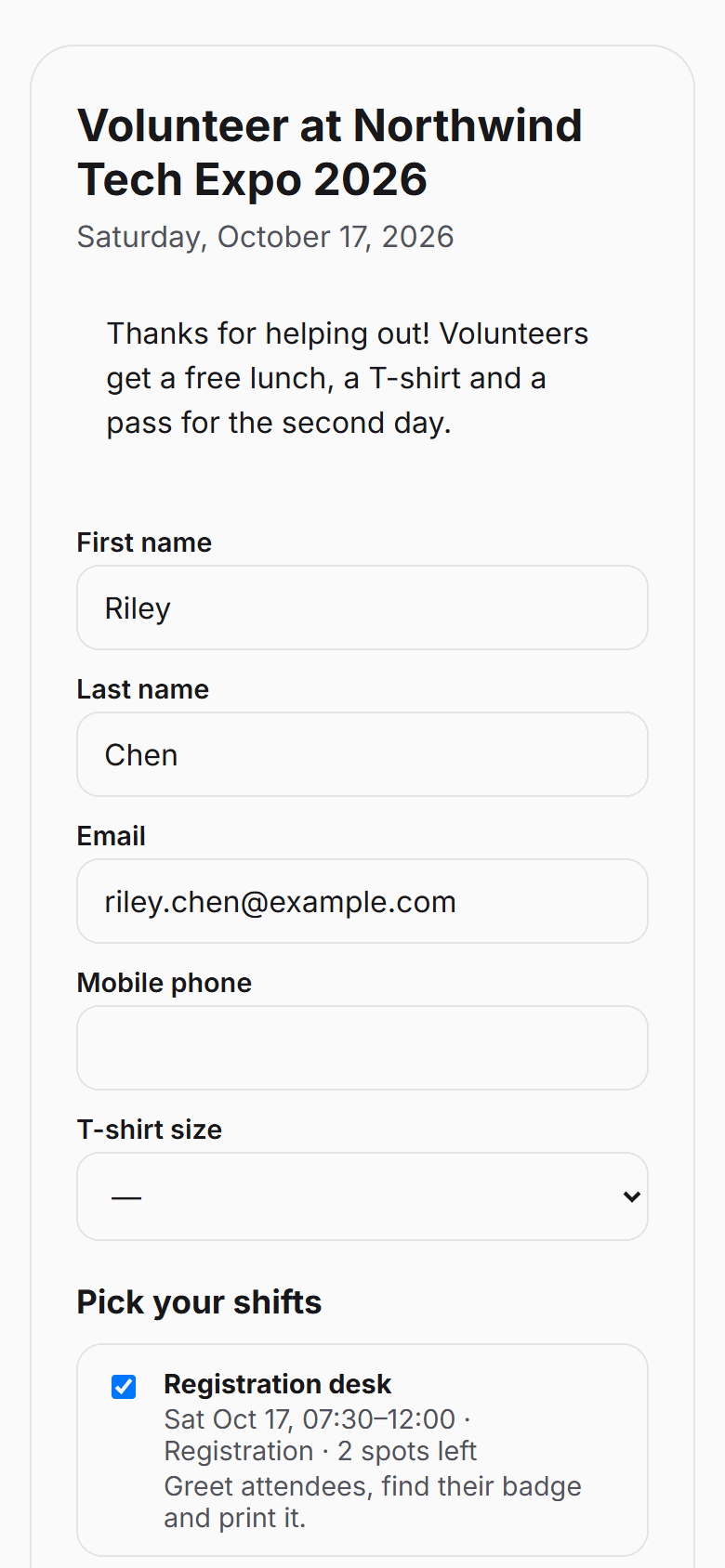
Step 2: Enter your details
Fill in your First name and Email. Last name, Mobile phone and T-shirt size are optional.
-
Step 3: Pick your shifts
Under Pick your shifts, tick each shift you want. Each one shows its time, place and how many spots are left.
-
Step 4: Send it
Click Sign up. We email you a confirmation with a link to your own shifts page.
You can't pick two shifts that overlap, and a shift disappears from the list once it's full. If there are no open shifts, you can still sign up and the organizer will be in touch. Some organizers confirm each volunteer by hand: until they do, your page says waiting for the organizer to confirm you.
Manage your shifts
-
Step 1: Open your page
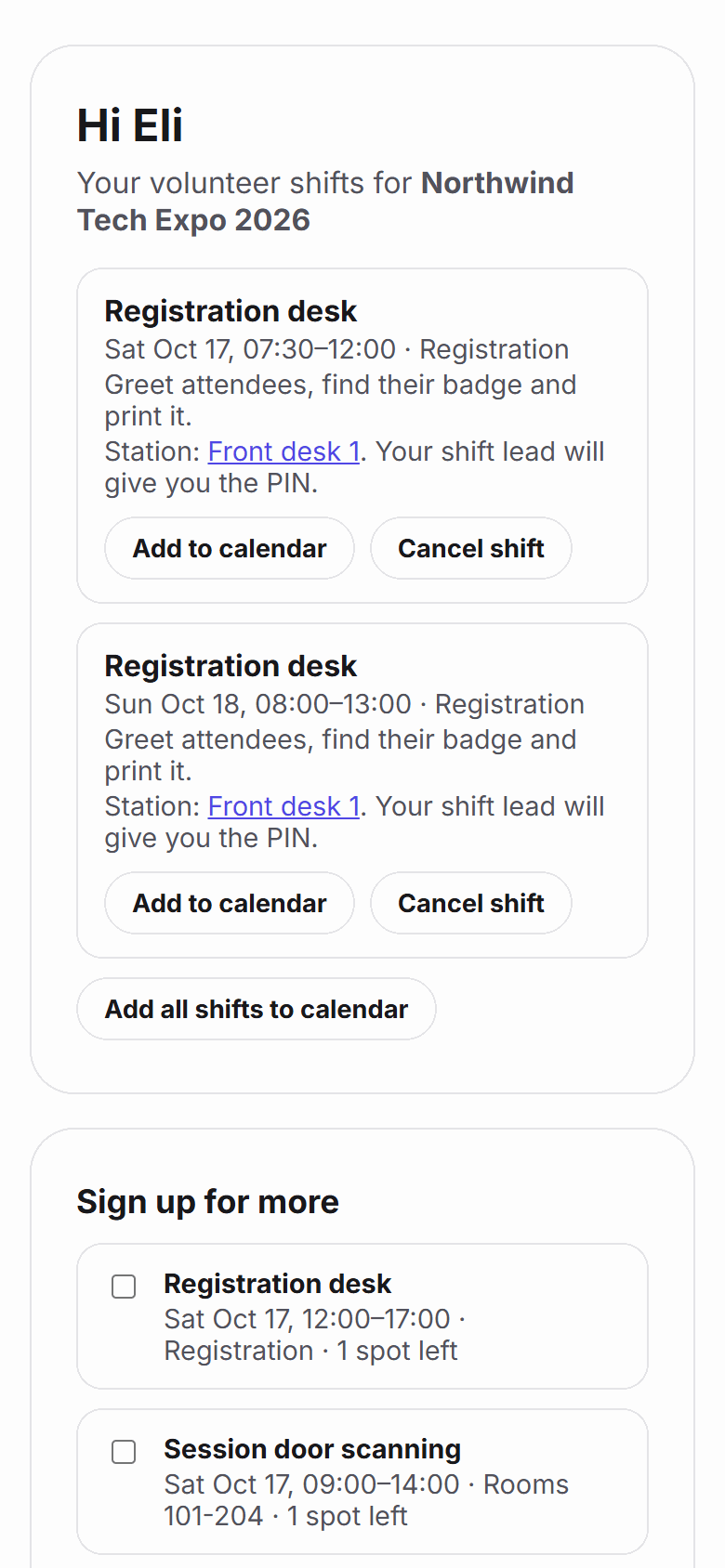
Click Manage my shifts on the thank-you page, or the link in your confirmation email.
-
Step 2: Add to your calendar
Click Add to calendar under a shift, or Add all shifts to calendar, to download a calendar file for your phone or computer.
-
Step 3: Take more shifts
While sign-up is open, tick shifts under Sign up for more and click Add these shifts.
-
Step 4: Cancel if you can't come
Click Cancel shift and confirm. You can cancel until the shift starts; after that, contact the organizer.
Keep your shifts link private. Anyone with it can see and change your shifts. Keep the confirmation email so you can find the link again.
Reminders
We email you a reminder about 24 hours before each shift, with the time, place, what to do and your station link if you have one. If plans change, please cancel from your page so someone else can take the spot.
On the day
-
Step 1: Find your station
If your shift is at a check-in desk, your shifts page shows a Station link. Open it on the desk laptop or tablet.
-
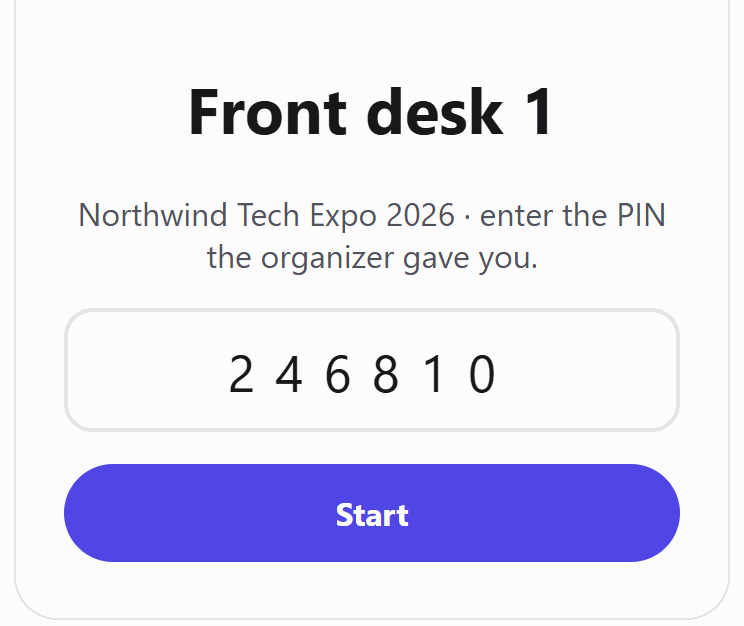
Step 2: Get the PIN
Your shift lead gives you the 6-digit PIN. It's never sent by email.
-
Step 3: Sign in at the desk
Type the PIN and click Start. Click Sign out when your shift ends.
When you arrive, the organizer or shift lead checks you in, and checks you out when you leave. For what you can do at a desk (search, print, reprint, walk-ins), see Set up volunteer stations.
Related guides
- Set up volunteer stations Give each check-in desk its own link and 6-digit PIN so volunteers can search, print and register walk-ins without your password.
- Manage volunteers and shifts Plan volunteer shifts, build a roster, open a public sign-up form, check volunteers in on the day and give them badges.
- Register walk-ins at the door Add people who arrive without a ticket, print their badge on the spot, and let the kiosk take self-registrations.
Still stuck?
Tell us what you were trying to do and what you saw. We'll help you sort it out.